Quick answer: AISong, MakeSong, Suno, Udio and Musicful can turn a line of lyrics or a short prompt into a full song for your website. Before you publish, compress the file to MP3, set preload="none" and lazy-load any embedded player so the page stays fast.
More brands and creators now add original music to their websites, from a jingle on the homepage to song demos on a portfolio page. AI song tools make that easy: one line of lyrics, like a tagline or a chorus hook, can become a full track in minutes. The catch is that audio files and embedded players are heavy, and a careless upload can slow your page and hurt your rankings. This guide compares five AI song tools, shows which one fits your starting point, and explains how to add the finished track to your site without losing speed.
Why Add Original Music to Your Website?
Original audio can make a site feel more personal and help visitors remember a brand. Common uses include:
- Brand jingles or sonic logos on a homepage or product video
- Song demos on a musician’s or producer’s portfolio
- Background music for explainer videos, ads and social clips that are also embedded on the site
- Podcast or course intros that need a short, unique theme
Using your own track also avoids copyright problems that come with grabbing a popular song.
Which AI Song Tool Fits Your Starting Point?
Pick the tool based on what you already have: only the words, or a version that is already sung.
| Tool | Best Starting Point | Best For |
|---|---|---|
| AISong | Song description or your own lyrics | Turning a hook or tagline into a full song structure |
| MakeSong | Prepared lyric plus a separate music brief | Keeping the words fixed while the arrangement changes |
| Suno | A generated section you already like | Extending a song forward from a chosen point |
| Udio | A sung section | Adding an intro or verse before or after the hook |
| Musicful | Two different lyric drafts | Comparing which version carries the hook better |
1. AISong: How Do You Turn a Hook or Tagline Into a Full Song?
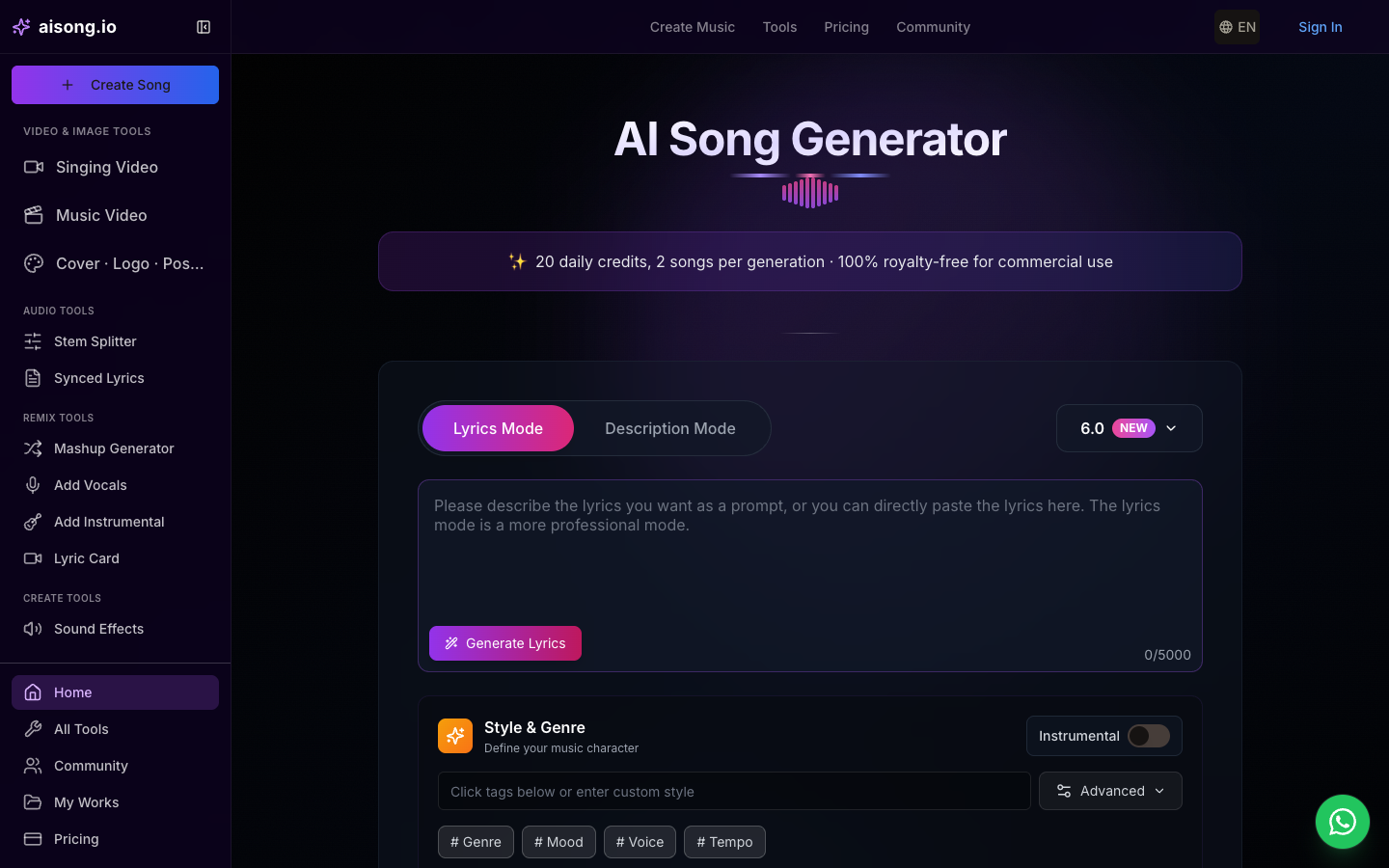
AISong’s AI Song Generator lets you enter a description to explore a song idea or paste your own lyrics into a defined structure. That suits a brand that already has a tagline it wants to hear as a chorus, or a songwriter who has one strong line, like “Leave the porch light on.”
How to use it: Put the hook in the chorus and write a short verse that sets it up, for example a verse about a missed bus before “Leave the porch light on.” Start with a restrained style prompt. When the chorus arrives, listen for where the stress falls, on “light” or on “on,” and keep the version that matches the meaning you want.
Best when: you have the hook in writing and want to hear it inside a full song before you settle on the verse.
2. MakeSong: How Do You Keep the Lyrics Fixed While the Style Changes?
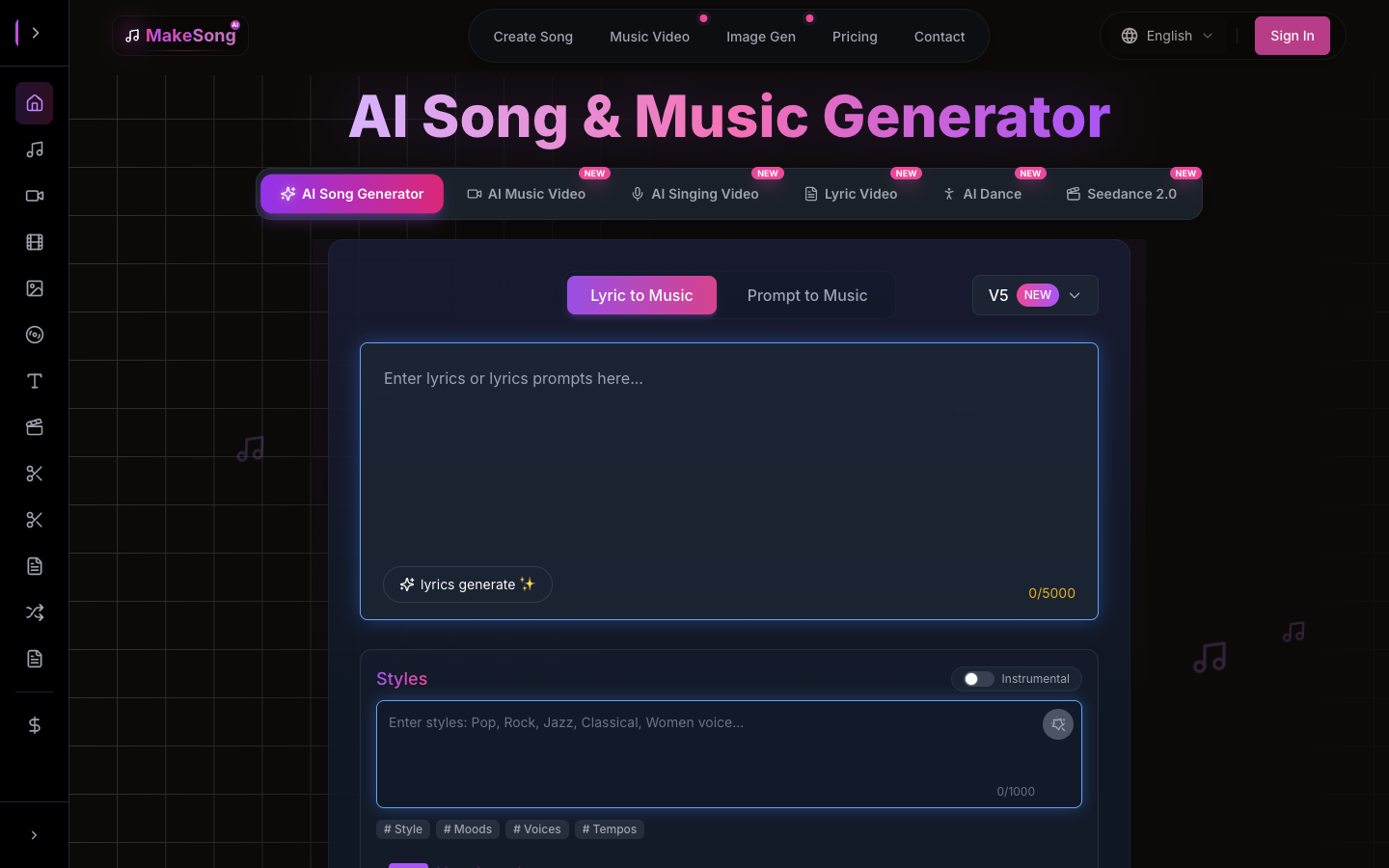
MakeSong’s AI Song Generator accepts a prompt or a prepared lyric, with musical direction given separately. That split helps when the exact words, such as a brand line or a chorus hook, must stay the same while you try different moods and arrangements.
How to use it: Ask for a simple, narrow melody in the verse and more space around the hook. Try one version that feels calm and another that builds, using the same lyrics. Then compare which one fits the page or video it will sit on.
Best when: you want several style options for the same words, for example a calm version for an about page and an upbeat one for an ad.
3. Suno: How Do You Extend a Section You Already Like?
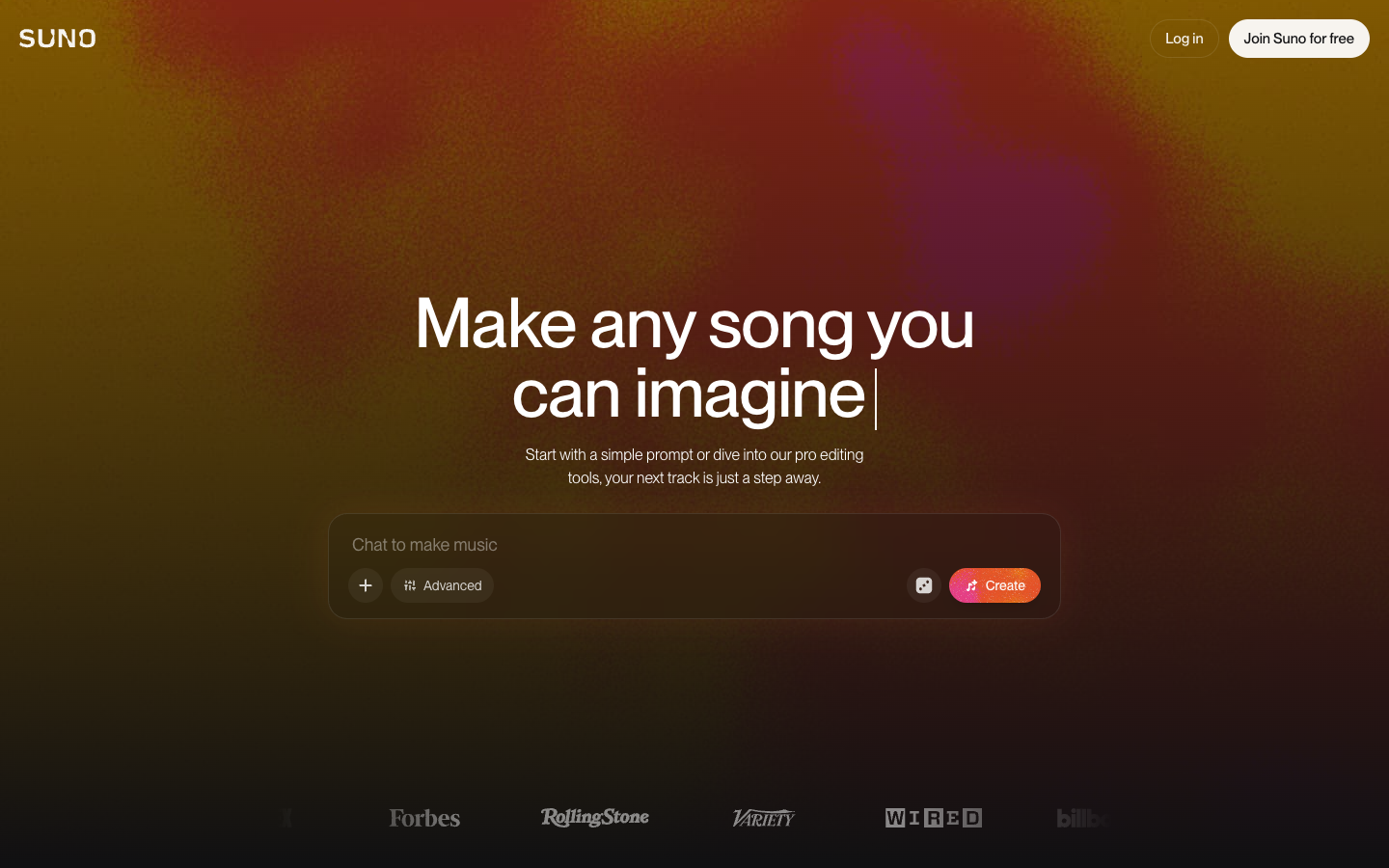
Suno offers Custom lyrics and an Extend option that continues a song from a point you choose in an existing generation. After extending, you can join the new part to the earlier audio to get one full track.
How to use it: Generate a short sketch with the hook near the end. Pick a clean handoff point and add the next verse lyrics in the extension. Play across the join and listen for any change in the voice that sounds out of place.
Best when: you already like a generated section and want to keep it while you test where the song goes next.
4. Udio: How Do You Test Different Intros to the Same Hook?
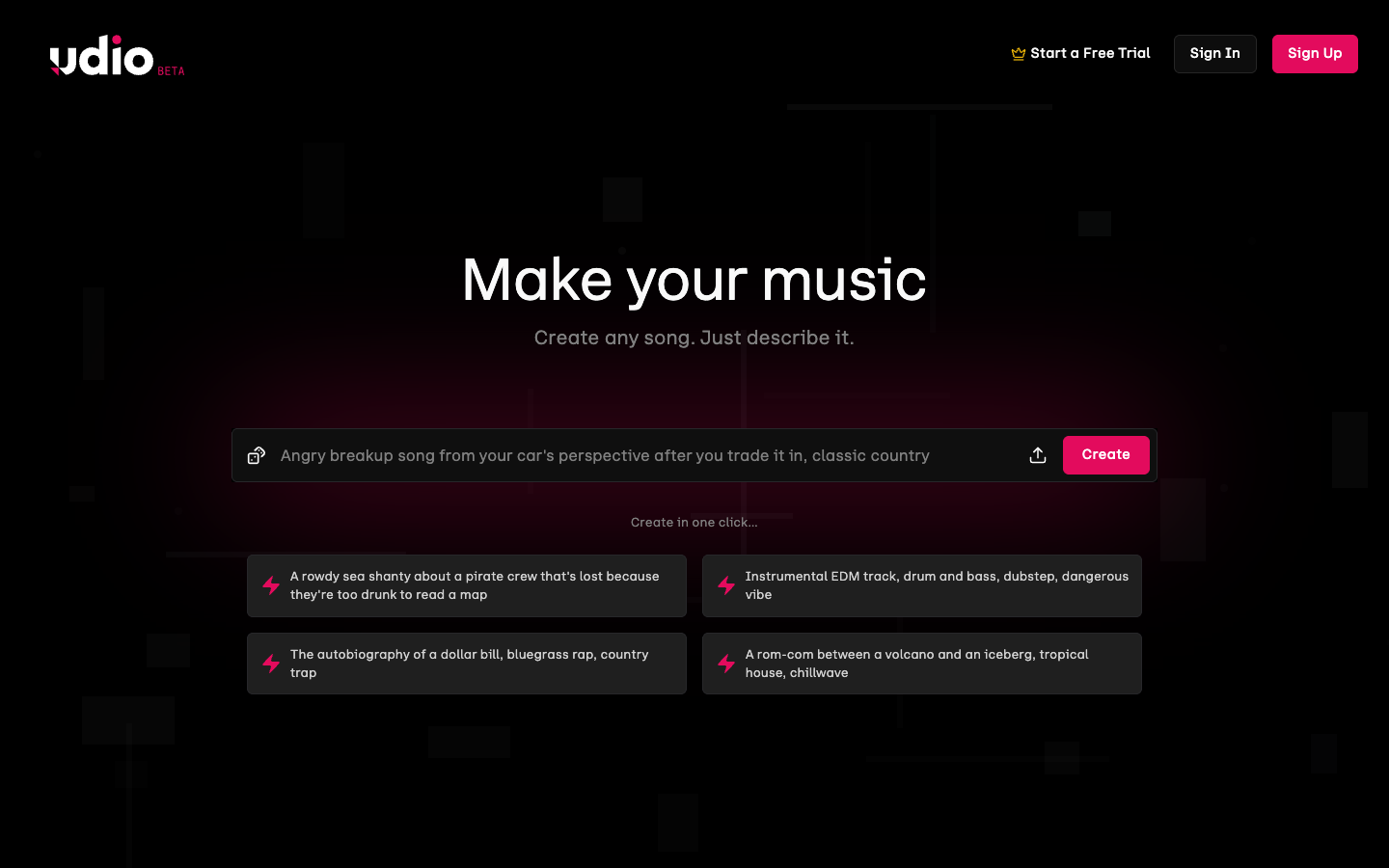
Udio’s Extend option can add material before or after an existing section. That lets you try different intros or verses leading into the same chorus.
How to use it: Start with a sung version of the hook and add an intro or verse before it. Compare a quieter lead-in with a fuller one and keep the one that makes the hook land harder.
Important for websites: As of November 2026, Udio has disabled downloads, so songs can only be played on its own platform. If you need an audio file to upload to your site, choose a tool that currently allows export.
5. Musicful: How Do You Compare Two Lyric Versions?
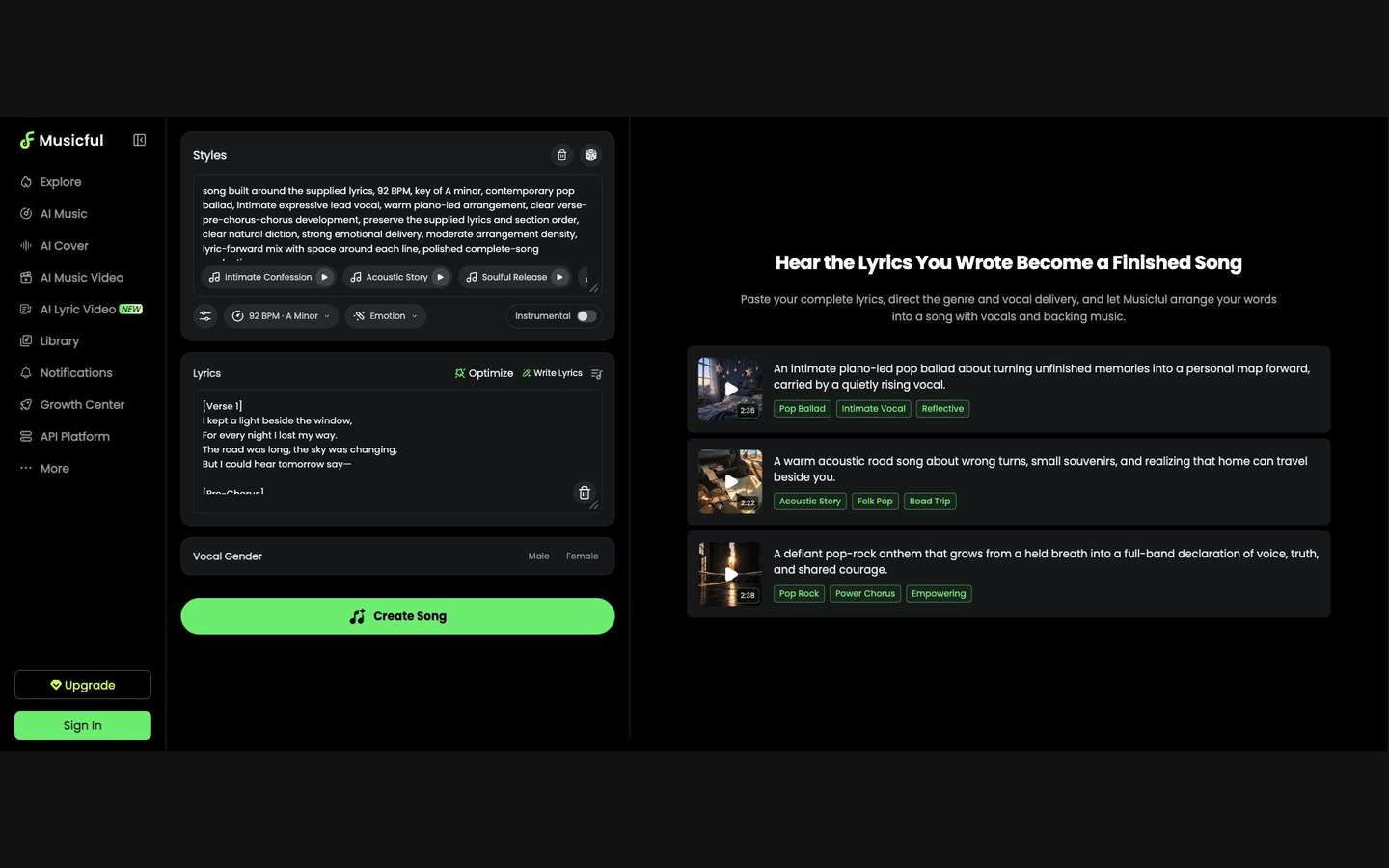
Musicful can turn a lyric draft into sung audio, with text prompts and lyrics as separate starting points. Its value here is hearing two different versions lead into the same chorus.
How to use it: Write one verse that states the message directly and another that hints at it through one small detail. Run both with the same chorus and the same music brief, then ask someone which version made the hook stronger, without showing them the lyrics.
Best when: you are not sure what the lyrics should say yet and want to compare full sketches.
What Should You Check Before Using AI Music on Your Website?
| Check | Why It Matters |
|---|---|
| Download or export option | You need a file to upload. Some tools limit or disable downloads. |
| Commercial-use rights | Using a track on a business site or ad may need a paid plan. Read the current terms. |
| File format and size | Many tools export large, high-quality files that must be compressed first. |
| Length | A 20–40 second loop or jingle is usually enough for a web page. |
How Do You Add Music to Your Website Without Slowing It Down?
A 3-minute song saved as WAV is about 30 MB, while the same song as a 128 kbps MP3 is about 3 MB. Large media and heavy players can hurt all three Core Web Vitals:
| Core Web Vital | How Media Can Hurt It |
|---|---|
| LCP (Largest Contentful Paint) | Large files and players compete with the main content for bandwidth |
| INP (Interaction to Next Paint) | Heavy player scripts keep the browser busy, so clicks feel slow |
| CLS (Cumulative Layout Shift) | Players without set dimensions push content down when they load |
Follow these steps:
- Compress the file. Export or convert to MP3 or AAC at about 128 kbps for music and 64–96 kbps for speech.
- Don’t preload. Use
preload="none"so the file downloads only when someone presses play. - No autoplay with sound. Most browsers block it anyway, and it wastes visitors’ data.
- Lazy-load embedded players. Add
loading="lazy"to iframes, or show a play-button image and load the real player only on click. - Set dimensions. Give players and iframes a width and height, or a CSS aspect-ratio, to avoid layout shift.
- Serve media from a CDN. It delivers files faster and reduces load on your server.
A lightweight audio player looks like this:
<audio controls preload="none">
  <source src="/media/brand-jingle.mp3" type="audio/mpeg">
</audio>
And a lazy-loaded embed looks like this:
<iframe src="https://www.youtube-nocookie.com/embed/VIDEO_ID"
        width="560" height="315" loading="lazy"
        title="Brand song" allowfullscreen></iframe>
If your page is still slow after adding media, see our guide on ways to improve site speed for better SEO. Third-party scripts are often part of the problem too, and our guide on server-side tracking and website speed shows how to cut them down. A speed plugin like W3Speedster can also lazy-load iframes and delay third-party scripts automatically.
Conclusion
AI song tools make it easy to turn one line into original music for your website. Use AISong or MakeSong when your words are fixed and you want a full song or several styles, Suno or Udio when you want to build on audio you already like, and Musicful when you are still choosing the lyrics. Before you publish, check export and commercial rights, compress the file, and load it only when a visitor presses play. Then run a speed test before and after, so your new track adds personality without slowing your site down.
Frequently Asked Questions
Q1. Which AI tool can turn one line of lyrics into a full song?
AISong, MakeSong and Musicful can build a full song from your lyrics, while Suno and Udio can extend a section you have already generated.
Q2. Can I use AI-generated music on my business website?
Often yes, but it depends on the tool and your plan. Check each tool’s current terms for download and commercial-use rights first.
Q3. Can I download songs from Udio?
As of November 2026, Udio has disabled downloads, so songs can only be played on its platform.
Q4. Which AI song tool is best for a brand jingle?
A lyric-first tool like AISong or MakeSong works well, because your tagline stays fixed while the music is generated around it.
Q5. Does adding music to a website slow it down?
It can if the file is large or preloads automatically. A compressed MP3 with preload=”none” has very little effect on initial load.
Q6. What is the best audio format for websites?
MP3 or AAC. Both play in all modern browsers and are much smaller than WAV.
Q7. What bitrate should I use for website audio?
About 128 kbps for music and 64–96 kbps for speech is a good balance of quality and file size.
Q8. Should music autoplay on my website?
No. Most browsers block autoplay with sound, and it can annoy visitors. Let them press play.
Q9. How do I lazy-load a music or video player?
Add loading=”lazy” to the iframe, or show a thumbnail with a play button and load the player only on click.
Q10. How do I check if audio is slowing my site?
Run PageSpeed Insights before and after adding it, and compare LCP, INP and CLS.