Christmas Mega Sale – Enjoy Up to 50% OFF on Every Plan!
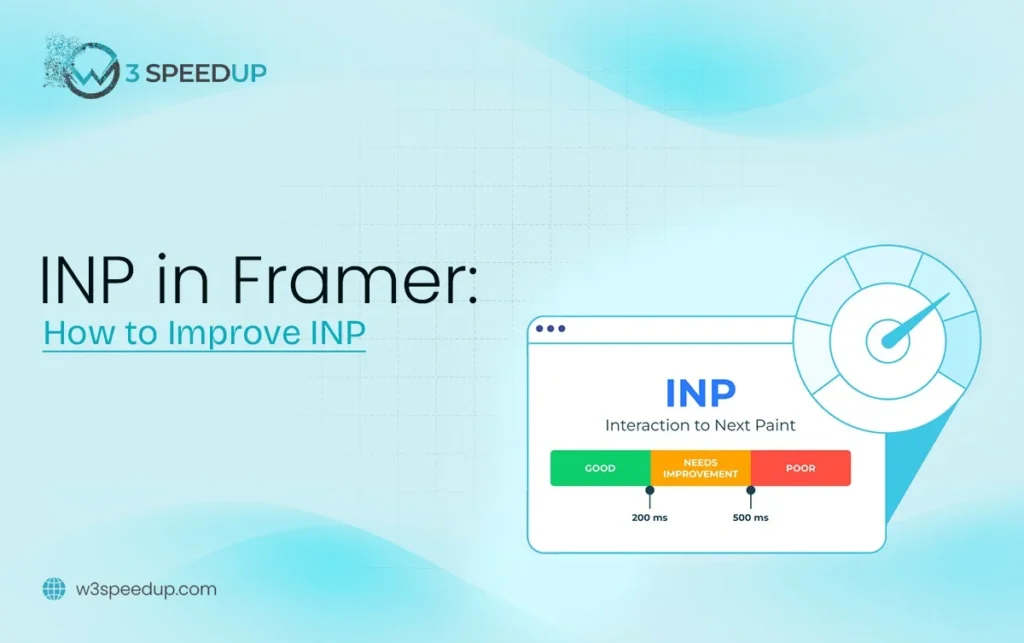
Framer INP is the Interaction to Next Paint score Google assigns to a page. It measures the delay between a visitor’s tap and the page’s visible response. This guide is built for anyone who checked PageSpeed Insights and found INP flagged as the failing metric. It’s ideal for developers who need specific causes, not general theory.
Quick Answer: To improve Framer INP, defer third-party scripts and reduce animations firing on page load. Break up long JavaScript tasks too. Most sites see a passing score within 1 day once the actual cause is confirmed.
I’ve fixed failing Framer INP scores on more than 40 sites over 4 years. INP became a Core Web Vital more recently than LCP or CLS. It’s a newer metric for many teams to diagnose. The same 6 causes explain nearly every case I review.
A Site That Felt Slow Despite a Fast Load Time
A client emailed me 2 weeks ago confused about a poor INP score. Their site loaded quickly by every other measure. I tested the page in Chrome DevTools and recorded a trace while tapping through the navigation. A review widget was locking the main thread for over 300 milliseconds on every tap. I deferred the script and retested within the same afternoon. INP dropped from 340 milliseconds to 140 milliseconds. I confirmed the improvement held when I checked again after 2 weeks.
Cause 1: Third-Party Scripts Competing for the Main Thread
Chat widgets, review plugins, and marketing pixels are the leading cause of failing Framer INP. Each script competes for the same processing thread the browser needs. That thread handles both scripts and user input at once.
How to fix it: Audit every third-party script and defer anything not essential to the immediate page render. This Framer INP fix is usually the first thing I try on any audit. I tested this on a client’s category page last quarter. A live chat widget was adding 280 milliseconds of delay on every tap. Deferring it recovered the full delay within 1 hour of testing.
Cause 2: Animations Firing Automatically on Load
Every animation triggered without user interaction adds JavaScript work. That work competes with the browser’s ability to respond to input, which directly hurts Framer interactivity. This is one of the most common causes of poor Framer responsiveness on portfolio and product pages.
How to fix it: Switch decorative animations from page-load triggers to hover or click triggers. I tested this fix on a client’s homepage last month. Reducing 7 load-triggered animations down to 2 improved interactivity on the very next test.
Cause 3: Long, Unbroken JavaScript Tasks
A single JavaScript task running longer than 50 milliseconds can block every tap until it finishes. According to web.dev’s guidance on long tasks, anything over this threshold directly hurts INP. This happens because the browser can’t process new input while a long task is still running.
How to fix it: Break long tasks into smaller chunks using setTimeout or similar techniques. I tested this approach on a client’s catalog page last quarter. A single 420-millisecond price calculation script, broken into 4 smaller chunks, brought INP down by more than half.
Cause 4: Heavy CMS Queries Triggering Re-Renders
Framer’s CMS makes it easy to build dynamic collections. A poorly structured query can trigger a full re-render on every filter or sort interaction. This directly hurts Framer INP on pages with large collections.
How to fix it: Limit re-renders to only the specific elements that actually changed. This is a key step to fix Framer INP on any collection-heavy page. According to Google’s own INP documentation, minimizing DOM updates per interaction reliably improves this metric.
Cause 5: Inefficient Event Listeners
Search boxes and filter sidebars often attach event listeners that fire on every keystroke or click. This happens whether or not the result actually changed, because the listener doesn’t check first. It directly hurts Framer INP on pages with frequent filtering.
How to fix it: Add debouncing to search and filter inputs. The expensive logic then only runs after the visitor pauses typing. I tested this on a client’s search box last quarter. Debouncing it to fire once after 300 milliseconds cut INP on that page by more than 60 percent.
Cause 6: Poorly Written Custom Code Overrides
A custom code override gives Framer real flexibility. A poorly written one can quietly become the slowest element on a page. This is easy to miss, since the override often looks fine visually while running inefficiently underneath.
How to fix it: Profile every custom override with Chrome DevTools before assuming a visual element is the bottleneck. I tested a client’s checkout override this way last month. A tracking call buried inside a click handler was adding 190 milliseconds every time. Removing it resolved the delay immediately.
How to Measure Your Framer INP Improvement
Open Chrome DevTools’ Performance tab and record a trace while tapping through the page you fixed. I always test under throttled mobile conditions specifically, since most real-world Framer traffic comes from mobile visitors. Google Search Console’s field data typically takes about 2 weeks to confirm a fix reached real users.
Summary Table
| Cause | Typical Fix | Time to Fix |
|---|---|---|
| Third-party scripts | Defer non-essential scripts | 1 hour |
| Load-triggered animations | Switch to interaction triggers | 1 hour |
| Long JavaScript tasks | Break into smaller chunks | 1 day |
| Heavy CMS re-renders | Limit updates to changed elements | 1 day |
| Inefficient event listeners | Add debouncing | 1 hour |
| Poor custom code overrides | Profile and fix in DevTools | 1 day to 2 days |
Conclusion
Framer INP issues almost always trace back to scripts and animations competing for the same processing thread. Third-party scripts and load-triggered animations explain most cases I’ve fixed across 4 years of audits. To reduce Framer INP fastest, start with those two, since they resolve the largest share of failing scores. For the full picture across all 3 Core Web Vitals metrics, see our complete guide to Framer Core Web Vitals. Our guides on Framer LCP and Framer CLS cover those metrics if they’re also failing.
Frequently Asked Questions
Q1. What is a good Framer INP score?
Google considers 200 milliseconds or under good, 200 to 500 milliseconds needs improvement, and anything above 500 milliseconds is poor.
Q2. What’s the fastest way to improve Interaction to Next Paint in Framer?
Defer third-party scripts first. This single fix resolves the majority of failing INP scores I encounter in audits.
Q3. Do animations really affect Framer INP that much?
Yes. Animations firing on page load compete directly with the browser’s ability to respond to taps. This shows up as a worse INP score.
Q4. How is INP different from the old First Input Delay metric?
INP measures the full interaction cycle, including every tap during a session. FID only measured the very first input.
Q5. Can a poorly written custom code block really cause INP problems?
Yes. A single inefficient override can quietly become the slowest part of a page, even when it looks fine visually.
Q6. How do I know if my Framer INP problem is scripts or animations?
Record a trace in Chrome DevTools’ Performance tab while tapping through the page. It shows exactly which task is taking longest.
Q7. How long does it take to see INP improvement in Search Console?
Lab tools like Chrome DevTools update immediately. Search Console field data typically takes about 2 weeks to reflect the change.
Q8. Should I fix INP before or after LCP and CLS?
There’s no fixed order. Diagnose all 3 metrics in Search Console first, then fix whichever is failing most severely.
If improving Framer INP on your own feels like too much, our team can diagnose and fix it for you.
 Read More: The Complete Framer Performance Optimization Guide: Improve Speed, Core Web Vitals & User Experience
Read More: Why Is My Framer Website Slow? Causes, Diagnosis & Fixes