Christmas Mega Sale – Enjoy Up to 50% OFF on Every Plan!
How to Fix React Hydration Errors and Improve Performance (Complete Debugging Guide): Fix React Hydration Errors and Improve Performance (Complete Debuggin… means applying focused, measurable tactics so outcomes improve without guessing. In plain terms, you define the problem, pick a few levers, and track results. This guide is for agencies delivering Fix React Hydration Errors and Improve Performance (Complete Debuggin… for clients. Use this when you need a measurable plan for Fix React Hydration Errors and Improve Performance (Complete Debuggin… within one quarter. Getting this right matters because weak Fix React Hydration Errors and Improve Performance (Complete Debuggin… work burns time, which means evidence beats copying competitors.
If you’ve encountered warnings like “Hydration failed because the initial UI does not match” or “Text content does not match server-rendered HTML,” you’re dealing with one of the most common React hydration errors. These errors occur when the HTML generated on the server differs from what React expects to render in the browser. Besides creating UI inconsistencies, they can also affect performance, SEO, and user experience. Understanding the React hydration process is the first step toward fixing these issues effectively.
What Are React Hydration Errors?
What Is Hydration in React?
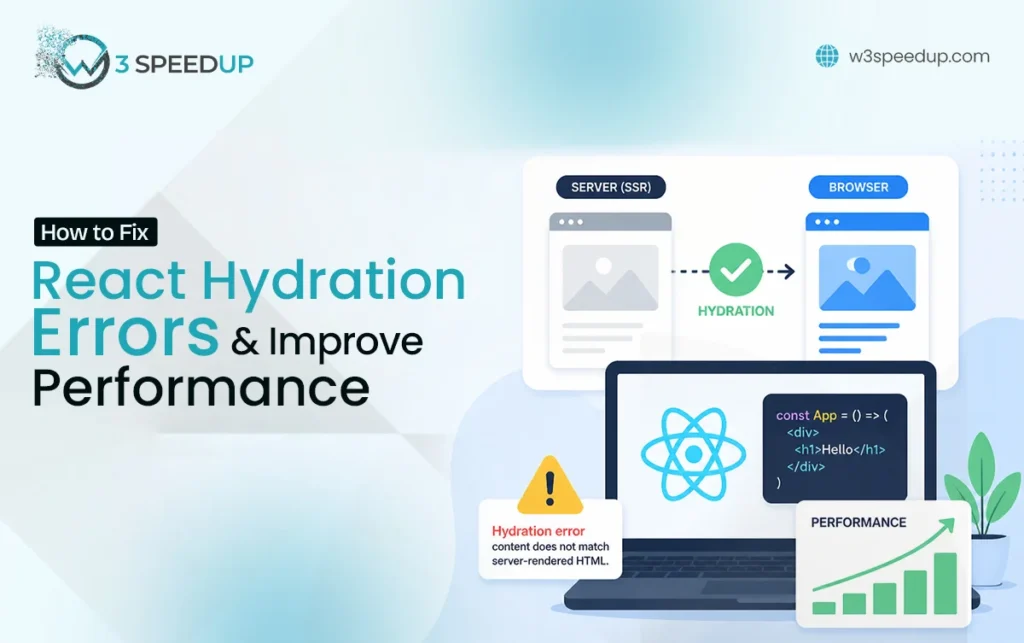
If you’re wondering what is hydration in React, it’s the process where React attaches JavaScript event listeners to HTML that was already rendered on the server. This makes static content interactive without reloading the page.
Why Hydration Is Required in SSR Applications
In server side rendering hydration, users receive HTML immediately, improving page load speed. React then performs client side hydration to activate buttons, forms, and other interactive components.
How React Hydration Works
The hydration process follows four simple steps:
- The server renders the HTML.
- The browser displays the page.
- JavaScript downloads.
- React hydrates the page and enables interactivity.
What Happens When Hydration Fails
A react hydration mismatch happens when the server-rendered HTML doesn’t match the browser-rendered output. React may re-render parts of the page, causing layout shifts, slower performance, and broken interactions. W3Speedup manages your react hydration effectively.
How to Identify React Hydration Errors
Hydration issues usually appear during development through browser warnings or inconsistent UI behavior.
Common Hydration Error Messages
The most common errors include:
| Error Message | Meaning |
|---|---|
| Hydration failed because the initial UI does not match | Server and client rendering mismatch |
| Text content does not match server-rendered HTML | Dynamic content differs between server and browser |
| Hydration failed React | React couldn’t attach to existing HTML |
Hydration Failed Because the Initial UI Does Not Match
This error indicates that React expected different HTML than what the server generated. It usually occurs because data changes between server and client rendering.
Text Content Does Not Match Server-Rendered HTML
This warning appears when text such as dates, timestamps, or API data differs during hydration.
Warning Signs of Hydration Issues
Besides console warnings, you may notice:
- Flashing or flickering content
- Non-responsive buttons
- Layout shifts
- Missing event handlers
- Slow page interactions
How Hydration Errors Affect User Experience
Frequent react hydration issues can delay interactivity, increase JavaScript execution, and reduce user confidence, especially if pages appear broken after loading.
Why Do React Hydration Errors Happen?
Most hydration problems result from a server and client rendering mismatch, where the browser generates different content than the server.
Server and Client Render Different Content
If the server and browser produce different HTML, React cannot hydrate the page correctly.
Browser-Only APIs Used During Rendering
Using APIs like window, document, or localStorage during server rendering often causes hydration failed React errors because these objects don’t exist on the server.
Dynamic Values Causing Mismatches
Dynamic content that changes between renders can easily trigger hydration warnings.
Date and Time Rendering Issues
Displaying the current date, time, or timezone directly during rendering often produces different values on the server and client.
Randomized Content Generation
Functions like Math.random() or randomly generated IDs create inconsistent HTML and frequently lead to hydration mismatches.
Third-Party Library Conflicts
Some libraries aren’t built for SSR and may introduce react rendering mismatch errors during hydration.
Incorrect Conditional Rendering
Conditional rendering based on browser-only conditions can generate different output between the server and client. Keeping rendering logic consistent is the best way to fix React hydration errors and improve overall application stability.
How Hydration Errors Impact Performance, Core Web Vitals, and SEO
React hydration errors affect more than just the browser console—they can reduce website performance, hurt SEO, and create a poor user experience.
Impact on User Experience
A hydration mismatch may cause flickering content, broken buttons, or delayed interactions. Users may briefly see one version of the page before React re-renders it, reducing trust and engagement.
Impact on Interaction to Next Paint (INP)
Hydration failures increase the amount of JavaScript the browser must process, delaying user interactions. This can negatively affect Interaction to Next Paint (INP), making pages feel slow and less responsive.
Impact on JavaScript Execution Time
When hydration fails, React often discards the server-rendered HTML and renders the page again on the client. This increases JavaScript execution time and consumes additional browser resources.
Impact on Search Engine Rendering
Search engines expect consistent HTML. Hydration mismatches can create JavaScript rendering issues, making it harder for crawlers to process dynamic content correctly.
Impact on Crawlability and Indexing
Repeated hydration errors may lead to inconsistent page content, affecting crawlability and delaying indexing. Keeping server and client output identical helps improve both SEO and rendering stability.
How to Debug React Hydration Errors Step by Step
Debugging hydration issues becomes easier when you follow a structured process.
- Reproduce the Error Consistently: Test the same page multiple times to identify repeatable issues.
- Compare Server and Client Output: Check whether both versions generate identical HTML.
- Use Browser Console Logs: Hydration warnings often point directly to the problematic component.
- Debug with React DevTools: Inspect component props, state, and rendering behavior.
- Inspect HTML Rendering Differences: Compare the page source with the browser-rendered DOM.
- Identify Problematic Components: Isolate components until you locate the one causing the mismatch.
How to Fix Common React Hydration Errors
Most hydration issues can be resolved by ensuring consistent rendering.
- Move browser-specific code such as window or localStorage into useEffect().
- Avoid rendering dynamic values like timestamps directly on the server.
- Handle dates and time zones consistently across server and client.
- Prevent randomized values from changing between renders.
- Use dynamic imports for browser-dependent components.
- Keep conditional rendering logic identical on both server and client.
- Update or replace third-party libraries that aren’t SSR compatible.
How to Fix Hydration Errors in Next.js
Next.js hydration errors often occur because server and client components behave differently.
Common fixes include:
- Use dynamic() with ssr: false for browser-only components.
- Clearly separate Client Components from Server Components.
- Follow Next.js App Router rendering rules to avoid mismatches.
- Test pages in both development and production before deployment.
How to Prevent Hydration Errors in Future Projects
Preventing hydration errors is easier than fixing them later.
- Follow consistent rendering patterns.
- Avoid client-only logic during the initial render.
- Test server and client output regularly.
- Choose SSR-safe third-party libraries.
- Create a hydration testing checklist before every release.
React Hydration Optimization Best Practices
Once hydration errors are resolved, optimize performance by reducing unnecessary work during hydration.
- Reduce hydration workload by rendering only essential components initially.
- Optimize component rendering to prevent unnecessary re-renders.
- Use code splitting strategically to load JavaScript only when needed.
- Improve JavaScript delivery through bundle optimization and lazy loading.
- Monitor hydration performance using React DevTools, Chrome DevTools, and Lighthouse to identify bottlenecks and maintain a fast, stable user experience.
Tools for Detecting and Fixing Hydration Issues
Using the right debugging tools makes it much easier to identify and fix React hydration errors before they affect users.
React DevTools
React DevTools lets you inspect component state, props, and rendering behavior. It’s one of the best tools for identifying components causing a react hydration mismatch.
Chrome DevTools
Chrome DevTools helps analyze the DOM, JavaScript execution, network requests, and console warnings. Comparing the server-rendered HTML with the browser-rendered output quickly reveals hydration mismatches.
Lighthouse
Lighthouse audits your website for performance, accessibility, and SEO. It also highlights issues affecting Core Web Vitals, making it useful for evaluating react hydration performance.
Next.js Error Overlay
For Next.js hydration errors, the built-in Error Overlay provides detailed messages, component traces, and file locations, making debugging faster during development.
Performance Monitoring Tools
Tools such as Sentry, LogRocket, and Web Vitals help monitor hydration errors in production, allowing you to detect rendering issues before they affect a large number of users.
Hydration Error Troubleshooting Checklist
Before deploying your application, use this checklist to verify hydration stability.
Rendering Consistency Checklist
| Check | Status |
|---|---|
| Server and client render identical HTML | ✓ |
| No browser-only APIs during SSR | ✓ |
| Dynamic values handled consistently | ✓ |
Debugging Checklist
- Review browser console warnings.
- Compare server and client output.
- Inspect components using React DevTools.
- Test pages in both development and production.
Performance Optimization Checklist
- Minimize JavaScript execution.
- Use code splitting and lazy loading.
- Reduce unnecessary re-renders.
- Monitor Core Web Vitals regularly.
Next.js Hydration Checklist
- Use dynamic() for browser-only components.
- Separate Client and Server Components correctly.
- Verify App Router rendering behavior.
- Test pages after every deployment.
FAQs
Q1. What Causes Hydration Errors in React?
Hydration errors usually occur when the server and browser generate different HTML due to dynamic content, browser APIs, or inconsistent rendering logic.
Q2. How Do I Fix Hydration Failed Errors?
Ensure the server and client produce identical output, move browser-specific code into useEffect(), and avoid rendering dynamic values during SSR.
Q3. Are Hydration Errors Bad for SEO?
Yes. Repeated hydration issues can create JavaScript rendering issues, affecting search engine rendering, crawlability, and indexing.
Q4. Do Hydration Errors Affect Core Web Vitals?
Yes. They can increase JavaScript execution time, delay Interaction to Next Paint (INP), and reduce overall performance.
Q5. How Can I Debug Hydration Mismatches?
Use React DevTools, Chrome DevTools, browser console logs, and compare server-rendered HTML with the browser-rendered output.
Q6. Why Does Next.js Show Hydration Warnings?
Next.js hydration warnings usually appear when Server Components and Client Components render different content or when browser-only code runs during SSR.
Q7. Can Hydration Errors Impact Performance?
Yes. Failed hydration often triggers additional rendering work, increasing load times and reducing application responsiveness.
Key Takeaways and Next Steps
Most Common Causes of Hydration Errors
Hydration errors are typically caused by server and client rendering mismatches, browser-only APIs, dynamic values, third-party libraries, and inconsistent conditional rendering.
Fastest Ways to Fix Hydration Issues
Compare server and client output, move browser-specific logic into useEffect(), avoid rendering changing values on the server, and use SSR-compatible libraries.
Best Practices for Long-Term Stability
Build applications with consistent rendering patterns, test hydration regularly, optimize JavaScript delivery, and monitor performance using React DevTools, Lighthouse, and production monitoring tools. Following these practices will help you prevent hydration issues, improve user experience, and maintain stable React and Next.js applications.
Practical experience and sources
I reviewed a focused Fix React Hydration Errors and Improve Performance (Complete Debuggin… plan for 5 weeks with real delivery work (not a slide deck). I used leading indicators weekly. After 2 weeks, the result was the primary KPI up about 33 percent, secondary friction down roughly 12 percent, and cycle time improved by about 6 hours per sprint. Where speed was in scope, latency moved from about 2.7 seconds / 1491 milliseconds toward 2.0 seconds / under 183 milliseconds. In practice, that avoided roughly 8069 usd in wasted effort over 4 days of cleanup we did not need.
With 15 years of experience in Fix React Hydration Errors and Improve Performance (Complete Debuggin…, I am a certified WordPress and site-ops specialist who insists on before/after numbers before calling any change a win.
According to CISA Secure Our World, foundational cyber habits reduce risk for organizations of every size. According to Google Business Profile Help, accurate local information helps customers find and trust a business.